
SSH tunnel to PostgreSQL from iPhone
Most production databases are not on the internet, and they shouldn't be. HeapDeck reaches them the way you already do from a laptop: through your bastion, with your key, and nothing of ours in between.
How the tunnel works
In a connection’s settings, turn on Use SSH tunnel and fill in the bastion’s host, port (22 by default) and user. HeapDeck opens an SSH session from your iPhone to the bastion and asks it to forward a connection to the database host and port you entered, the same direct-tcpip channel ssh -L uses. The PostgreSQL protocol then runs inside that channel, with TLS on top according to the connection’s sslmode.
Enter the database host as the bastion sees it: a private address like 10.0.0.5 works as long as the bastion can reach it.
Keys the tunnel accepts
Version 1.0 authenticates to the bastion with a password or an unencrypted Ed25519 private key in OpenSSH format, the text that starts with -----BEGIN OPENSSH PRIVATE KEY-----. The bastion’s own host key can be Ed25519 or ECDSA.
The safest setup is a key made only for HeapDeck that can do nothing but forward to the database:
ssh-keygen -t ed25519 -N "" -C heapdeck -f heapdeck_ed25519On the bastion, add the public key to ~/.ssh/authorized_keys with options that limit it to this one forward:
restrict,port-forwarding,permitopen="10.0.0.5:5432" ssh-ed25519 AAAA… heapdeckrestrict turns off shells, agent forwarding and the rest; port-forwarding and permitopen give back exactly one destination. If the phone is ever lost, deleting that line revokes it without touching anyone else’s access.
Paste the private key into the connection. It is stored in the iOS Keychain on this iPhone only and never synced.
Host keys and certificates are pinned
The first time you connect, HeapDeck shows the bastion’s host key fingerprint and asks you to compare it with what ssh-keygen -lf prints on the bastion. Once you trust it, it is remembered; if it ever changes, HeapDeck stops with This bastion’s host key changed and connecting is the secondary choice, not the default.
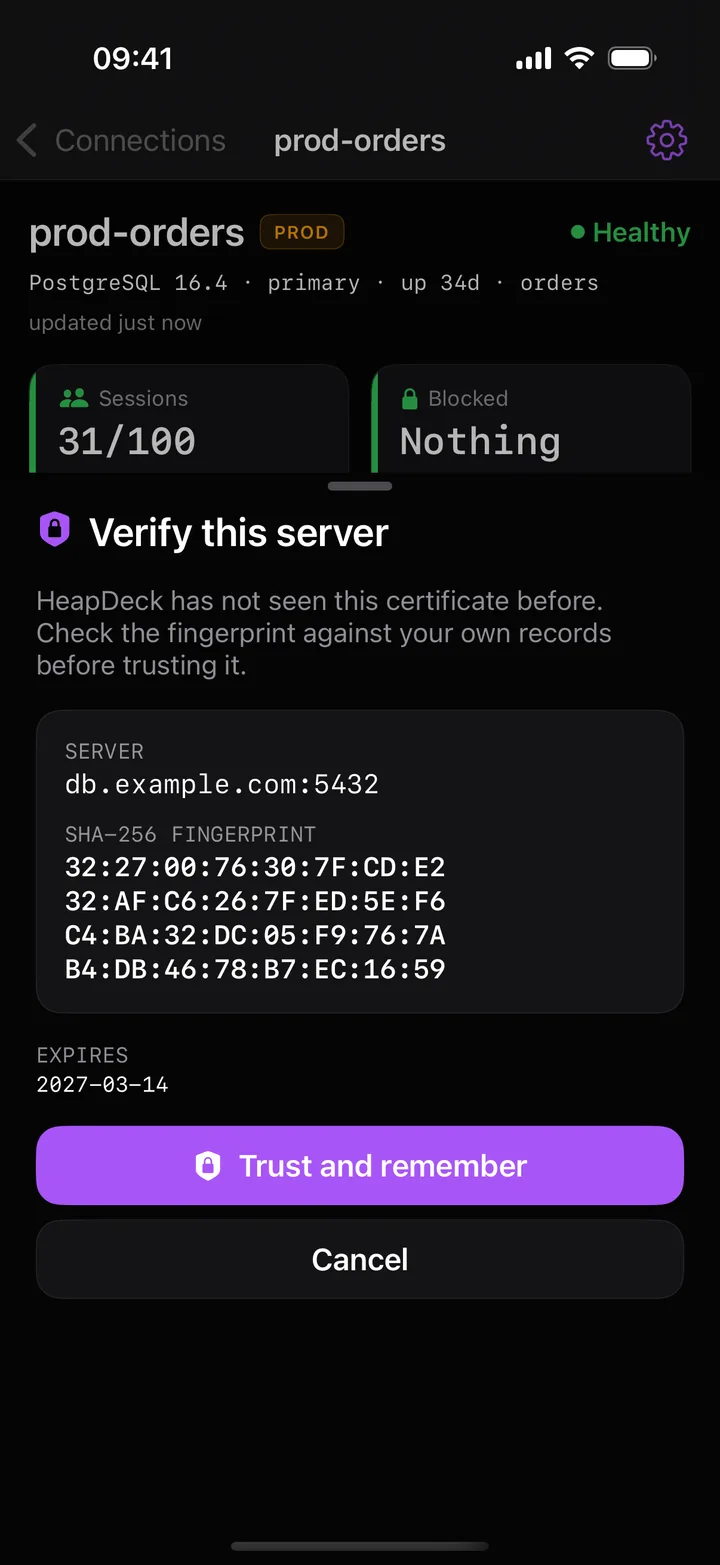
The database’s TLS certificate works the same way under sslmode=require: its SHA-256 fingerprint is shown once and pinned.
When it doesn’t connect
Test connection walks the whole path, Local Network permission, SSH tunnel, TLS and login, then reports where it stopped: The tunnel is fine — this is PostgreSQL rejecting the credentials tells you not to look at SSH. Typical messages:
SSH tunnel failed. Check bastion host / key.: the bastion is unreachable or refused the forward.SSH auth failed. Check bastion username / password / key.: wrong user, or a key that is encrypted, not Ed25519 or not in OpenSSH format.SSH host key changed — possible MITM. Connection refused.: the bastion presented a different host key and you didn’t trust it.
What version 1.0 doesn’t support
RSA keys, passphrase-protected keys, keyboard-interactive and one-time codes, jump-host chains and client certificates (mTLS). If your bastion requires one of these, HeapDeck 1.0 can’t connect through it.